¶ Reseller App License Management
The system comes with the Free Plan activated
This license allows you to configure up to 4 "advanced" users for a single domain/tenant for free and indefinitely.
The administrator can register and upgrade this license free of charge to add one "advanced" user and one “advanced” user with the “mobile” add-on feature (IOS/Android Loquace Mobile App).
The license registered in this way can operate indefinitely and without costs.
Once the license is registered, the administrator can purchase additional services.
¶ License Registration and upgrade the free license
You must register the license to add one "advanced" user and one “advanced” user with the “mobile” add-on feature for free.
The license registered in this way can operate indefinitely and without costs.
Once the license is registered, the Administrator can purchase additional services and modules.
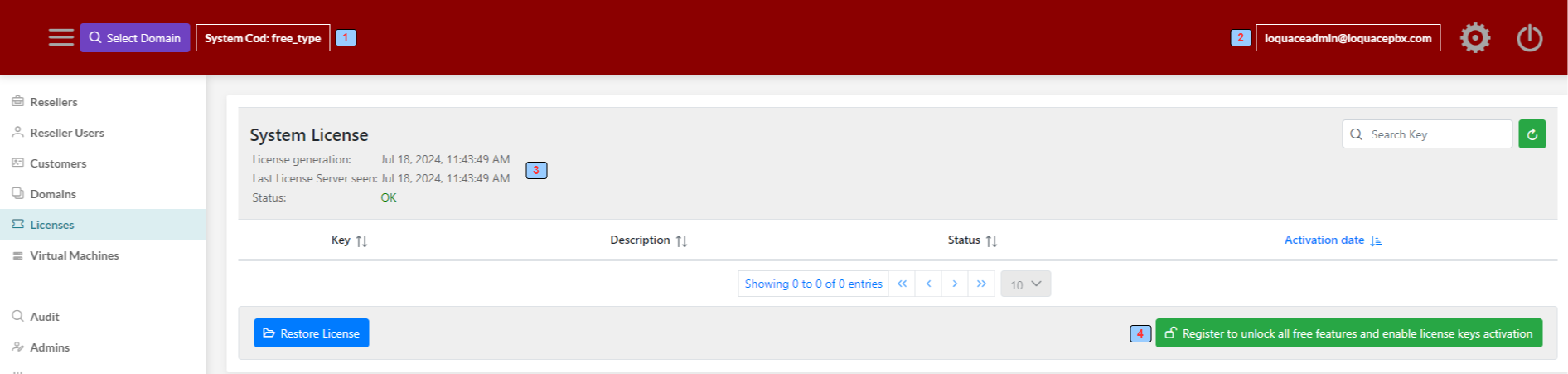
1 - The System Cod, the cod is “free_type” as the license is not yet registered
2 - The logged Administration username
3 - License status
4 - Click this button to activate the license procedure
When you click the button the following form is displayed
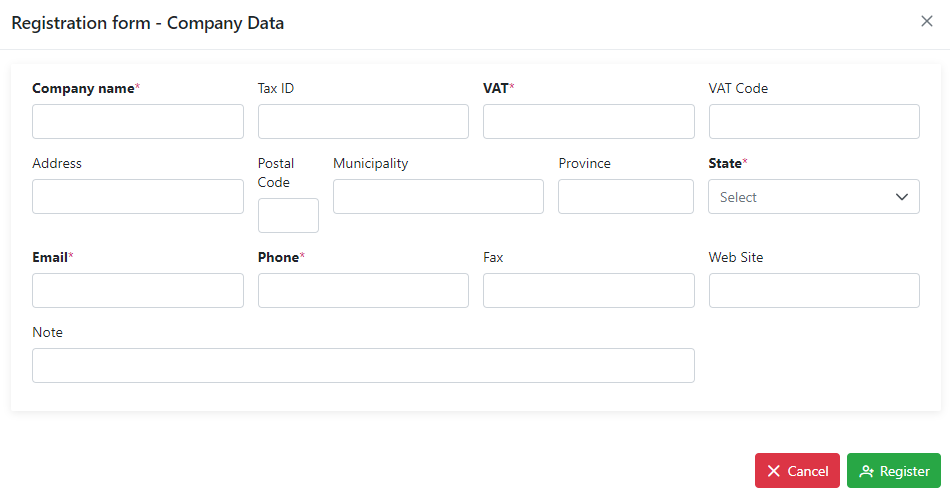
Fill in the mandatory fields (* fields) and click the “Register” button.
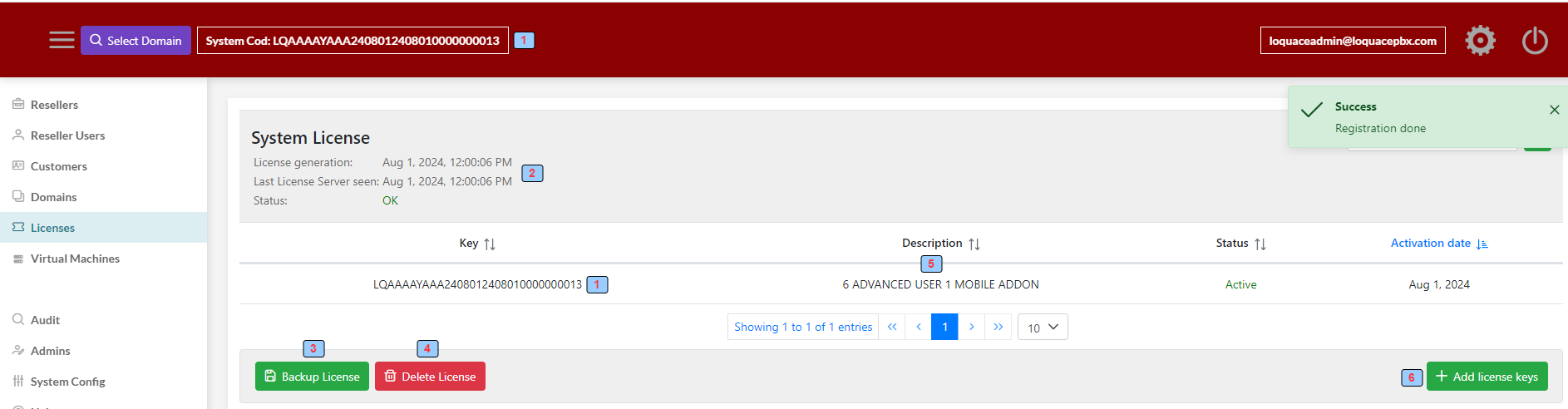
1 - The System Cod: This code uniquely identifies the system
2 - License status
3 - BackUp the license
3 - Delete the license
4 - License ket description
5 - Add new license keys (if you purchase new services)
The license backup is used for recovery in case of machine failure, replacement, and a new installation. It is recommended to back up the license once it is registered and keep it in a safe place.
¶ Add new license key
You get one or more license keys when you purchase one or more new services.
New key(s) must be added and validated before using new services.
Click the “Add license keys” button
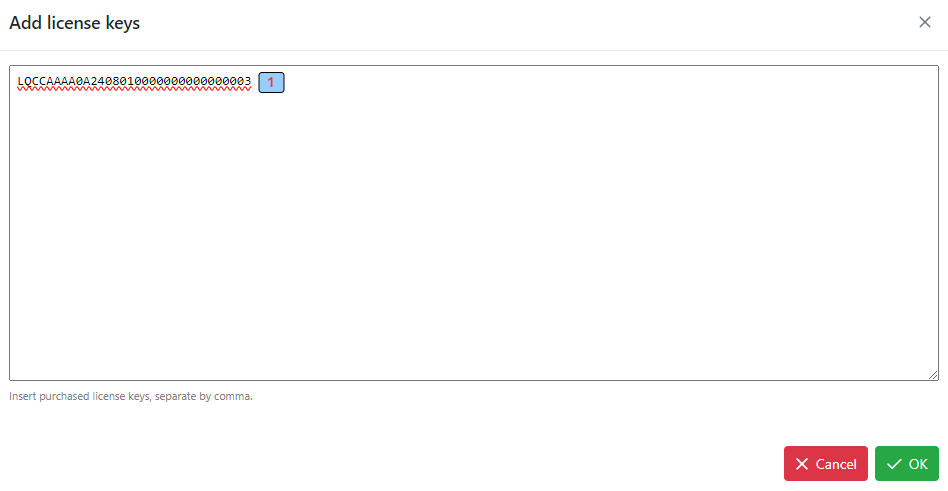
1 - The key to validation. Separate the keys by a comma if you have to add more than one key
Click the button “OK” to add the key/keys
The procedure for adding and validating purchased keys will be activated and when completed the key(s) will be added to the license.
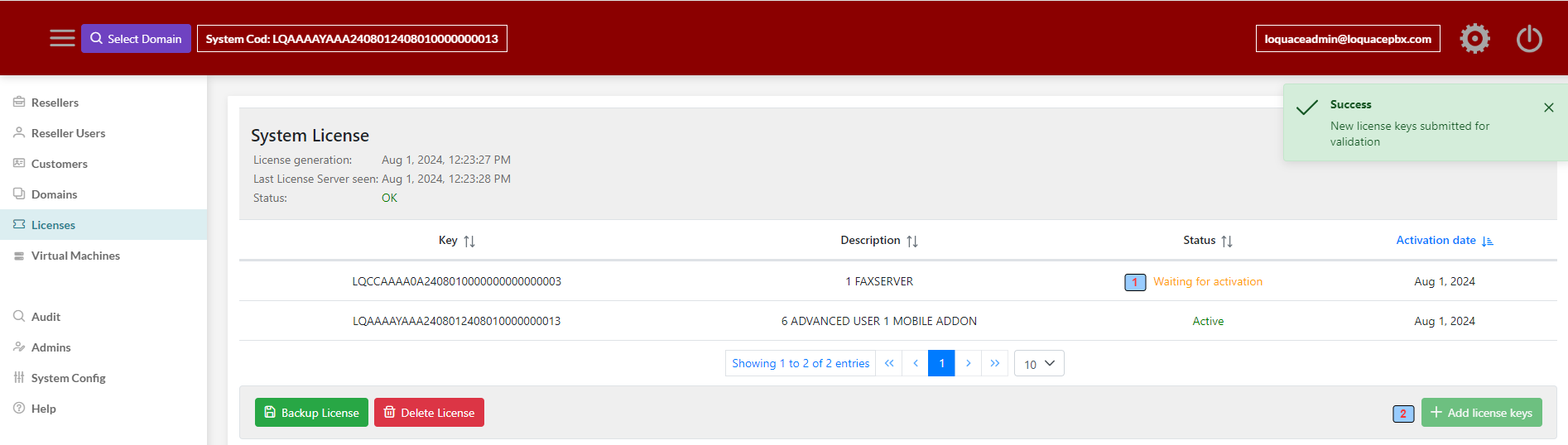
1 - The key is in the validation status
2 - The “Add license keys” button is disabled. You cannot upload any more keys until the validation process is complete.
The validation procedure may take some time. Once the procedure is completed, the system will automatically load the new license and activate the related services.
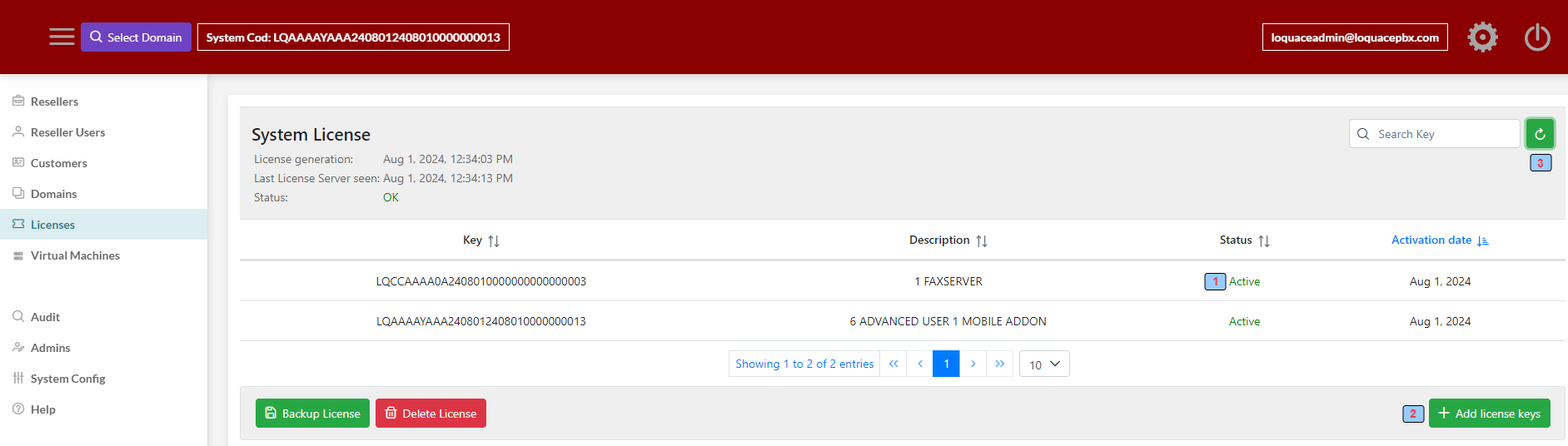
1 - The key has been successfully validated
2 - The "Add License Keys" button is enabled. You can upload new keys because the validation process is complete.
3 - Update license status. The license status is also validated in the background.
Log out and log in to utilize the new licensed features